

Have you ever had trouble saving videos from the internet or downloading files from overseas file hosts?
“Downloads are slow.” “They stop partway through.” “Clicking one at a time is a chore.”
The tool that solves all of these at once is the free download manager introduced here, JDownloader2.
Just copy the URL of the page you want to download and it is added to the list automatically. You can download several files together, and if a download stops partway you can continue from where it left off.
Especially if you use Rapidgator, Katfile and similar services, using this software makes a big difference to how comfortable they are.
This article explains JDownloader2 from installation and basic use to saving YouTube videos and linking Premium accounts for overseas file hosts, with screenshots, in a way beginners can follow.
Besides handy settings such as hiding ads and stopping subfolders from being created, it also covers precautions for safe use and frequently asked questions.
After reading this article, you can start using JDownloader2 without getting lost.
- Overview and features of JDownloader2
- How to install JDownloader2
- How to use JDownloader2
- JDownloader2 frequently asked questions (FAQ)
- Summary: make downloading more efficient with JDownloader2
Overview and features of JDownloader2
JDownloader2 is a free download manager developed as the successor to JDownloader. It lets you download videos and files from overseas file hosts together and efficiently.
- Download videos, music and images
- Several downloads at once (parallel downloads)
- Resume function (continue from where you left off after an interruption)
- Just copy a URL and it is analysed and downloaded automatically
- Downloaded archives are extracted automatically
- Captchas (image verification) can be entered together in the software
- Supports many overseas file hosts
- Features can be extended with plugins
- Free software available in many languages
Having all these features for free is a big attraction.
URL JDownloader2
JDownloader2 screen
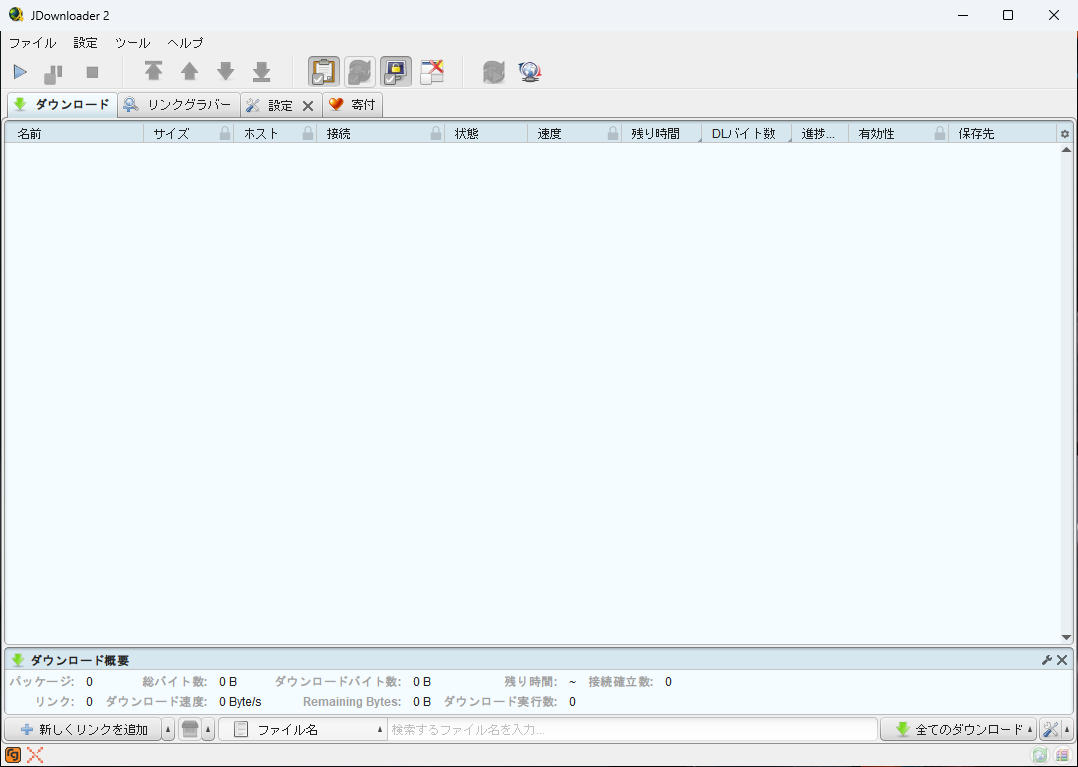
The interface is localised, so it is easy to operate.
How to install JDownloader2
Let’s start with how to install JDownloader2.
There is nothing difficult, so just go through the steps in order.
Precautions for installing safely
Always download the JDownloader2 installer from the official site (jdownloader.org). Unofficial sites with similar names sometimes distribute files containing viruses.
Also, during installation you may be offered other software. If you do not need it, untick it or skip it before continuing.
Download and installation steps
Go to the download page from JDownloader2.
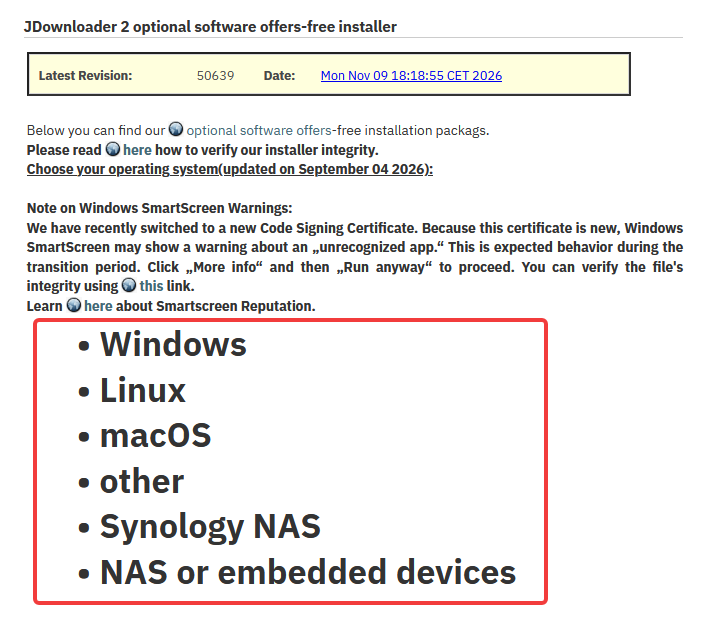
Choose the one that matches your environment.
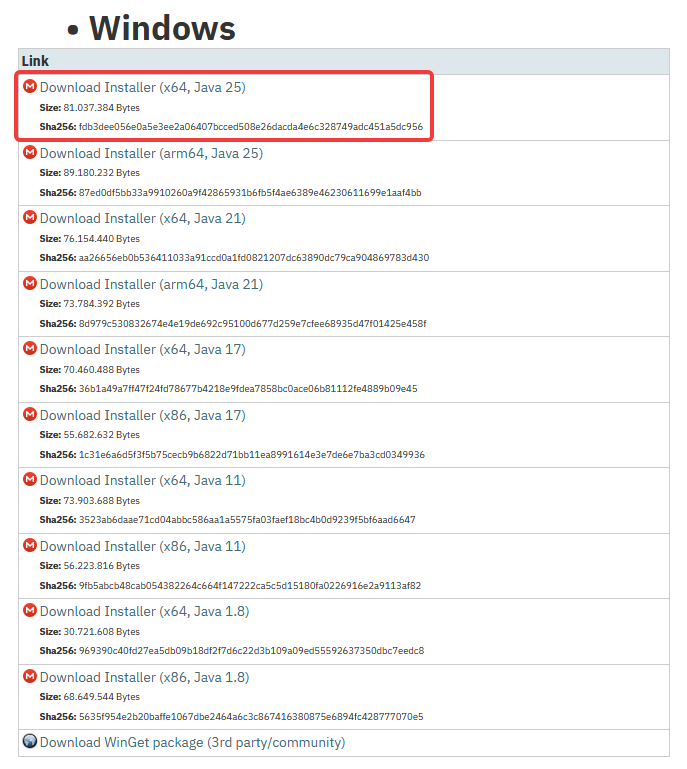
For Windows, click the one at the top.
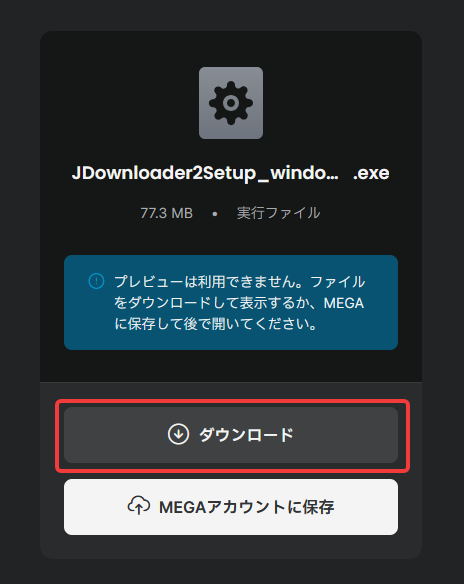
Click Download.
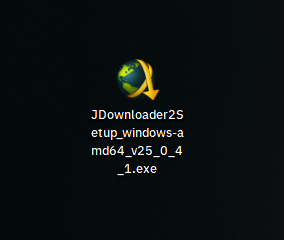
An exe file is downloaded. Double-click it to install.
Follow the on-screen instructions to complete the installation.
If it starts, the installation is complete.
How to use JDownloader2
Basic use
Once installation is finished, try an actual download.
While JDownloader2 is running it monitors the clipboard automatically, so when you copy the URL of the media you want to download, it is added to the download list automatically.
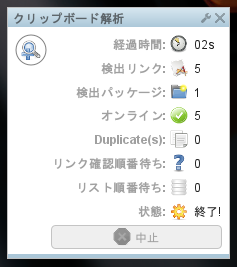
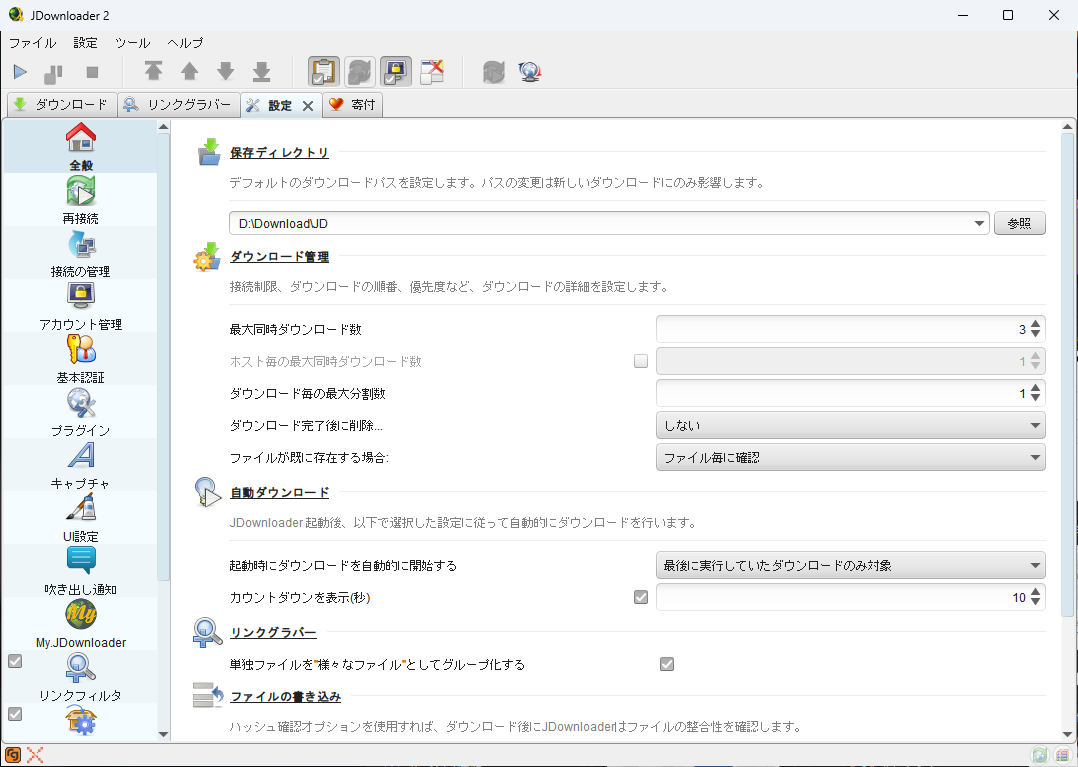
Before you use it, change the download location to wherever you like under Settings → General → Download Folder.

You can also add links manually
You can also add links by hand and download them.
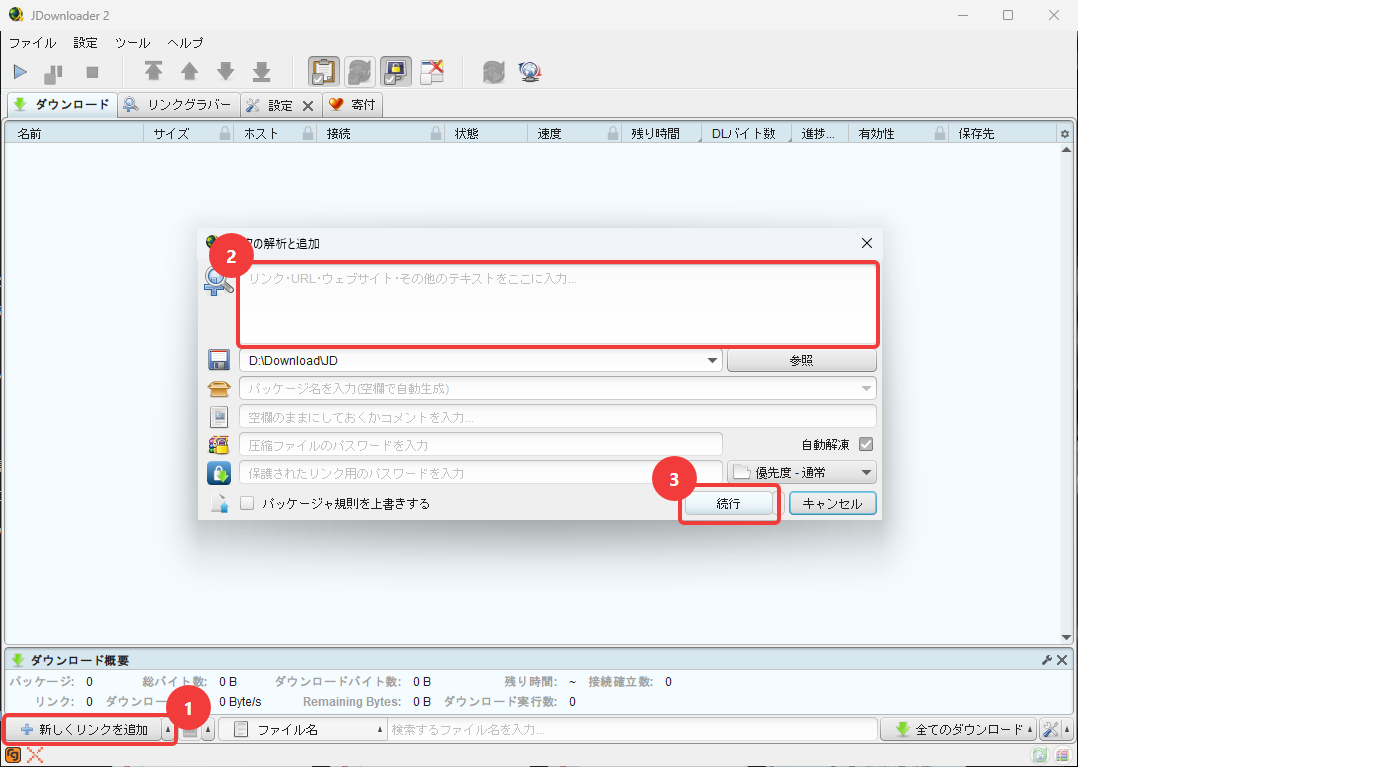
Click Add New Links → paste the URL → Continue.
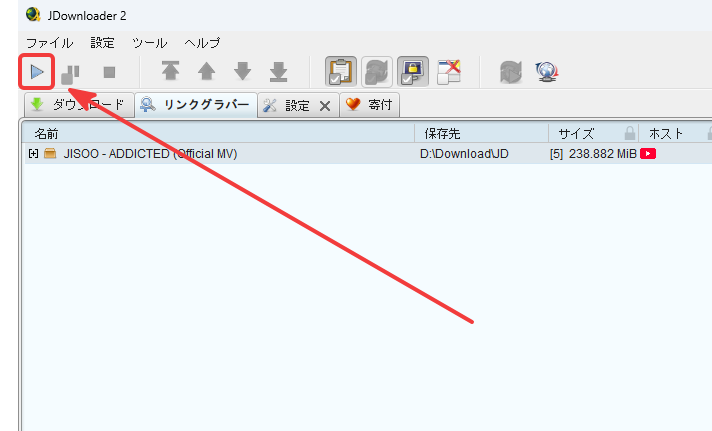
Once added, click the start button at the top left and the download begins.
That covers the basics.
How to download and save YouTube videos
YouTube videos are easy to download and save.
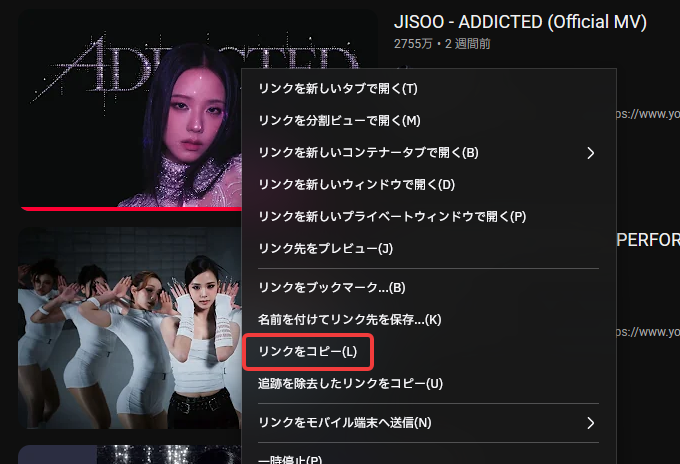
Select a video and copy the link.
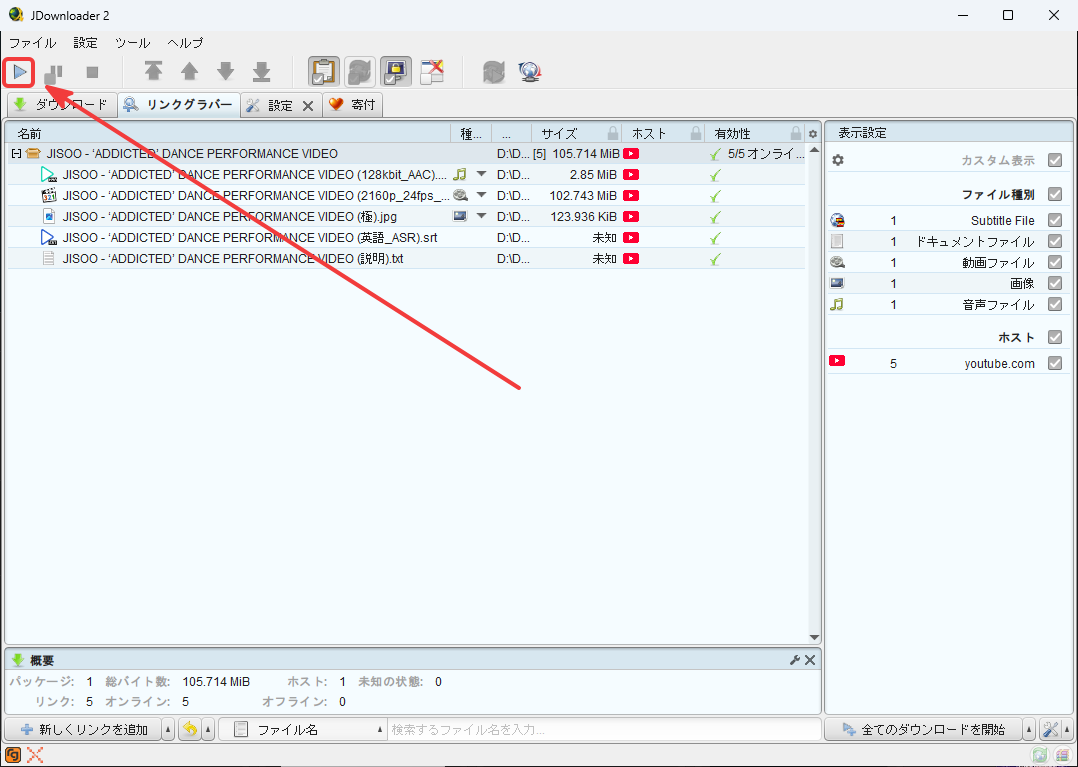
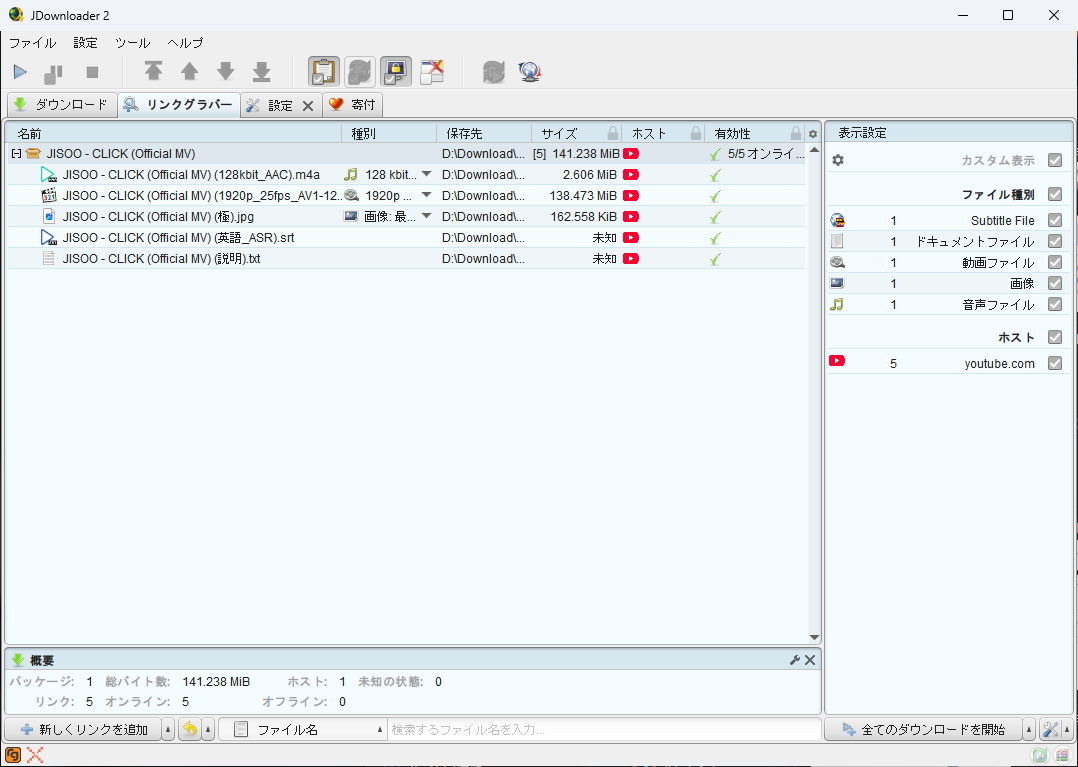
An added URL first goes into a list called the LinkGrabber, where the details of the video are shown. Click the button at the top left and the download starts.
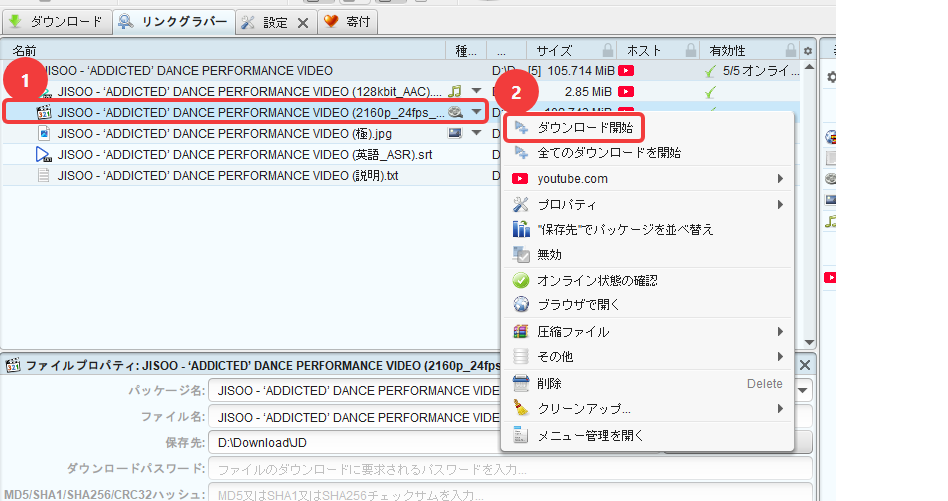
Done this way, every file that comes with the video is downloaded, including the description and subtitle files. As in the image, click only the ones you want and choose Start Downloads to download just those files.
Mixes and playlists can also be downloaded in one go
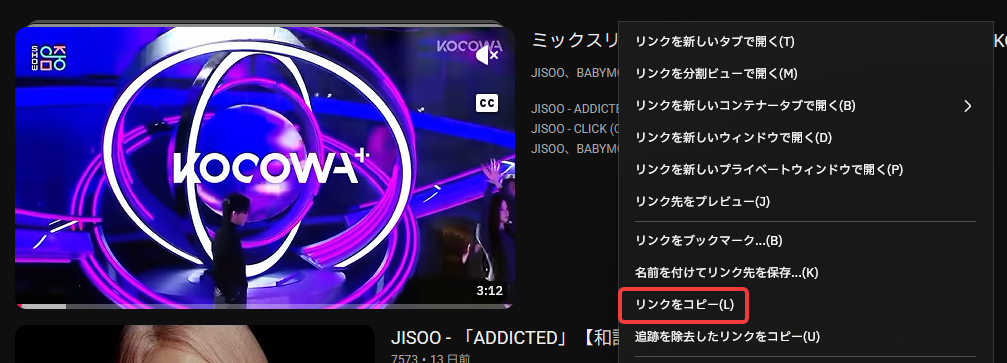
Copy the link of the playlist.
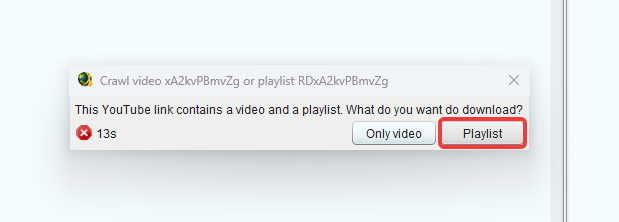
When it recognises a playlist, it asks whether to download the single video or all the videos in the playlist. Click Playlist.
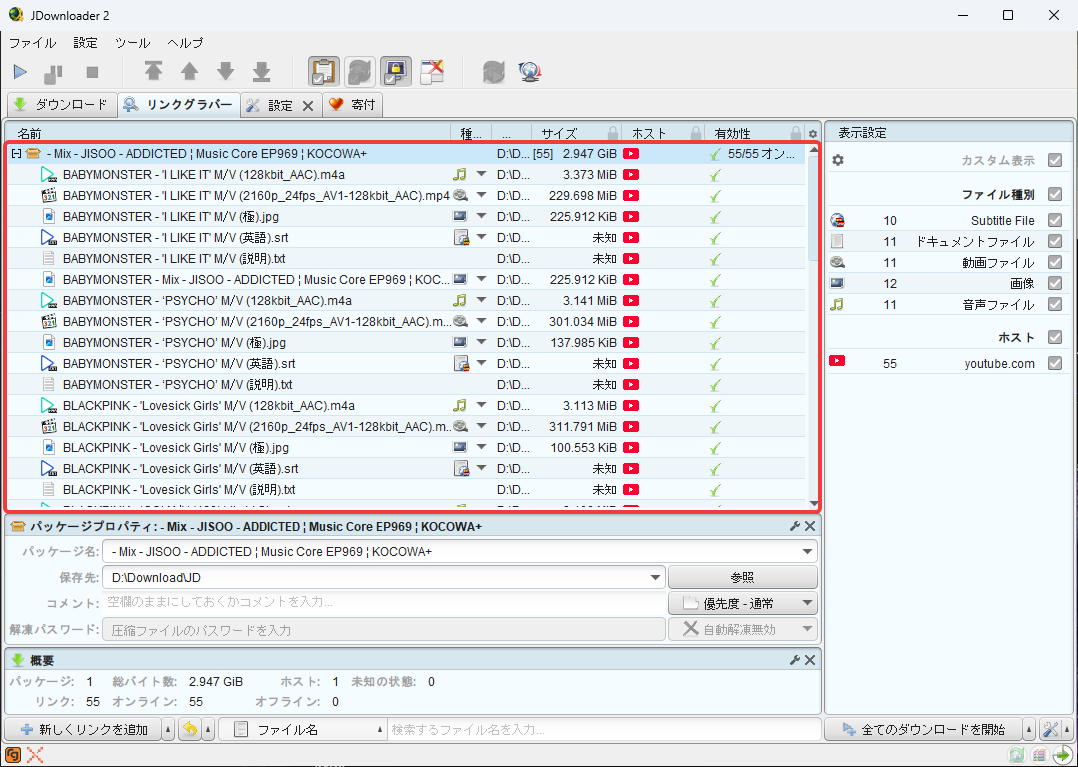
JDownloader2 analyses the links and keeps adding them to the download list. Once everything is added, click the download button to download them all at once.
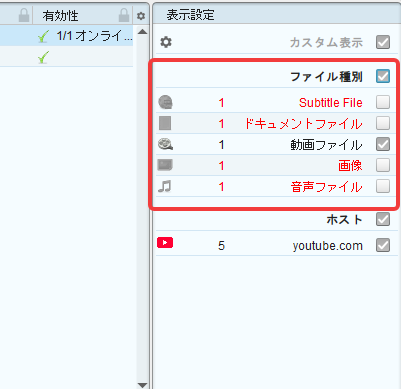
Unneeded audio and text files are added as well. Narrow the list with the view settings on the right to select only the files you want.
You can also choose video and audio quality
While items are in the LinkGrabber, you can choose the video and audio quality for the download.
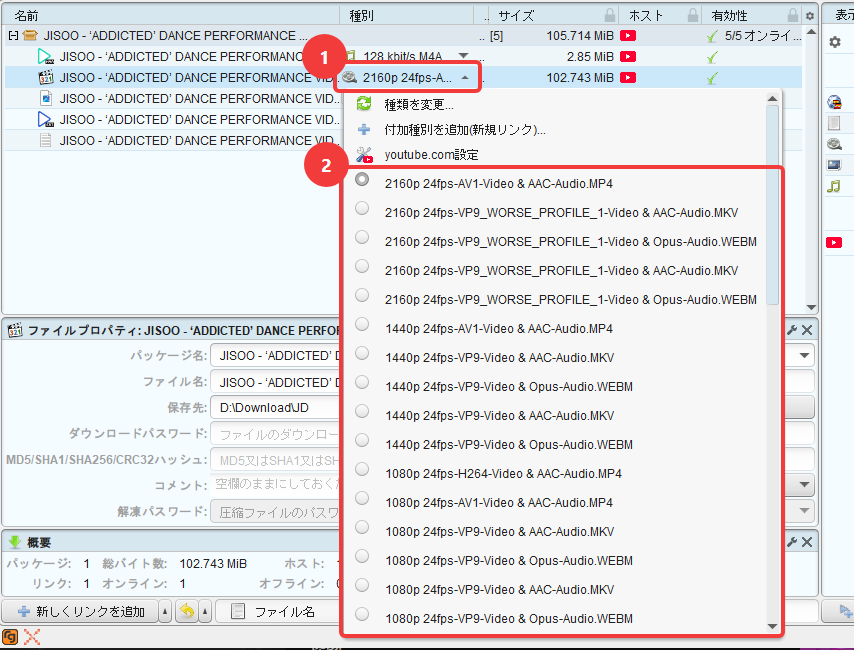
Click the video variant to choose the resolution. 2160p is 4K and 1080p is Full HD. You can download a video file at the quality that suits your purpose.
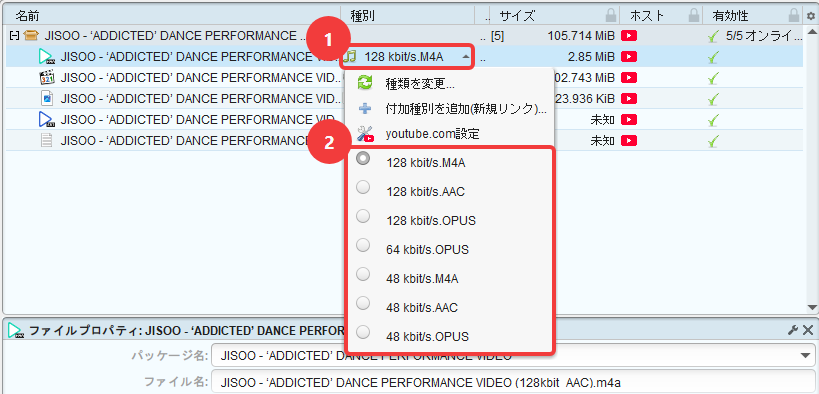
For audio files you can choose the bitrate in the same way. The higher the number, the better the sound quality.
Can I download videos from X (formerly Twitter)?
JDownloader2 can also download videos from X (formerly Twitter), but the steps are complicated at the moment, so we do not recommend it.
If you use Firefox, installing Twitter Media Assist makes downloading easy.
How to link Premium accounts for overseas file hosts
JDownloader2 supports many overseas file hosts: just copy a URL and it analyses it automatically and can start downloading.
Especially handy is the resume function. Even if the connection drops partway through, the download continues from where it stopped, so even large files are less likely to fail.
On top of that, if you set up a Premium account, the speed limit and download waiting time that apply to free members disappear, and you can download as fast as your connection and the server allow.
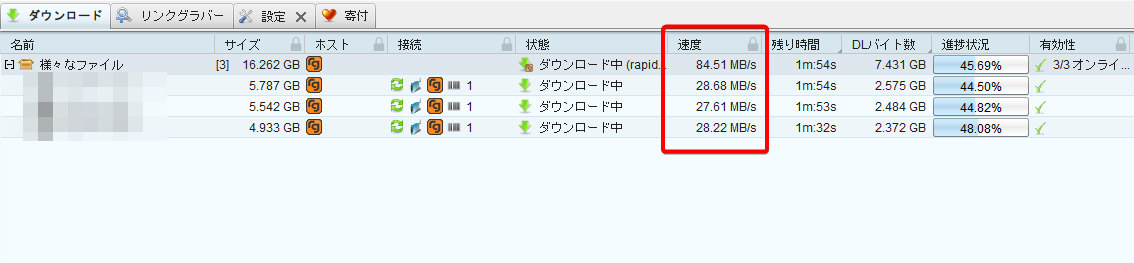
Even with three large files in parallel, downloads run at over 25 MB/s.
How to buy a Premium account is covered in How to Use Preaka.JP, and software that is handy to use alongside it in Recommended Tools for Overseas File Hosts.
How to link an account
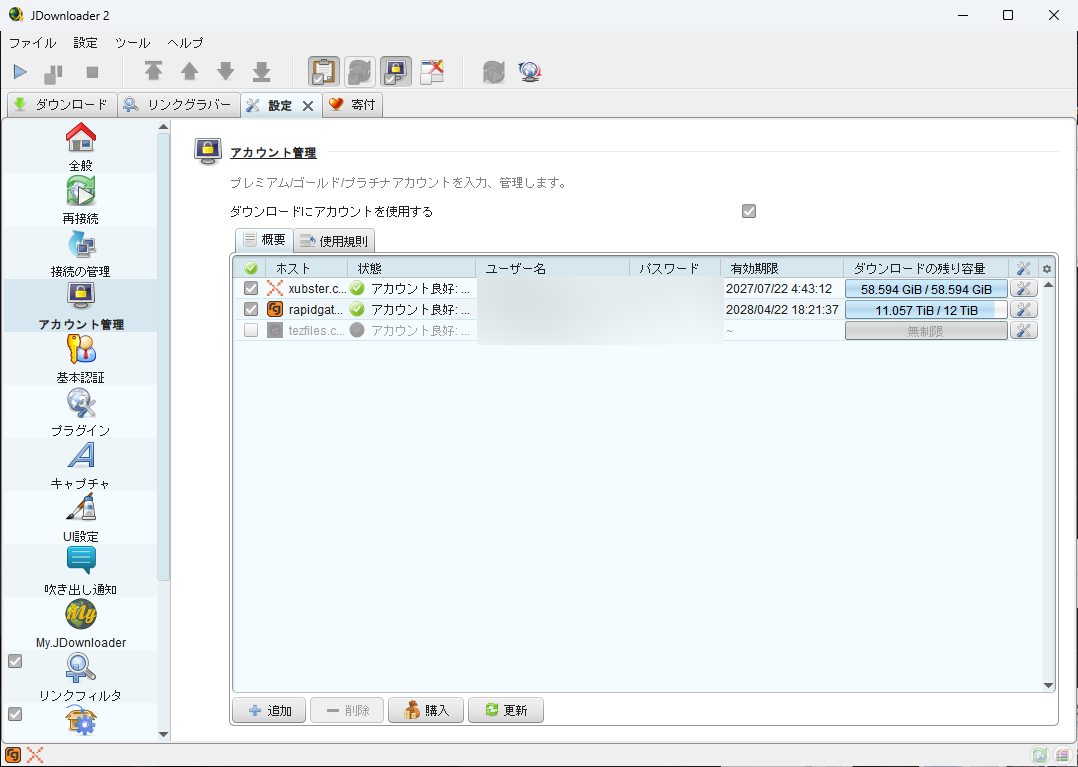
Go to Settings → Account Manager and you reach the screen where you can enter account details.
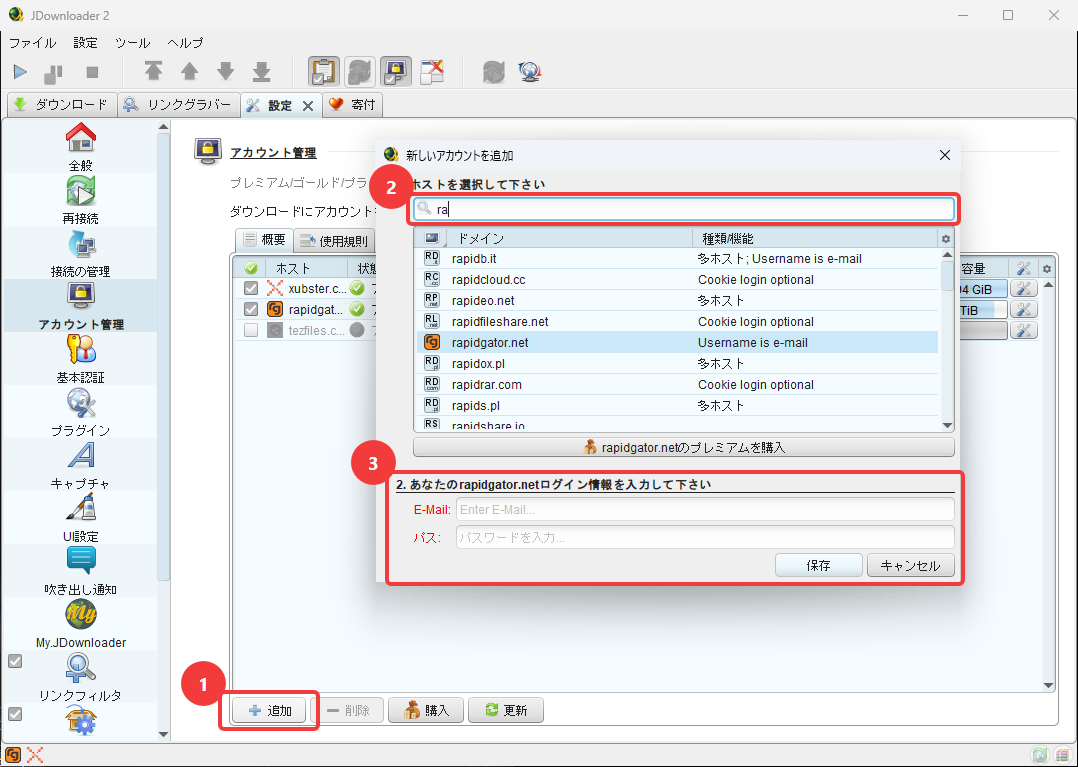
- Click the Add button.
- Search for the file host you want to add.
- Enter your account details for the file host (email address and password).
When login succeeds, the status changes to show the account is OK, and the expiry date and remaining download volume are shown.
JDownloader2 is now linked to your Premium account.
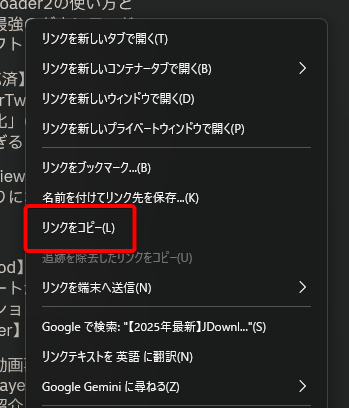
After that, all you do is right-click and copy the download link of an overseas file host.
The moment you copy a link, JDownloader2 starts analysing it automatically and begins a high-speed download using your Premium account. You no longer need to press download buttons one by one in the browser.
Split files are also joined and extracted automatically
JDownloader2 also handles split files.
Files split into Part1, Part2, Part3 and so on are identified automatically when downloaded with JDownloader2, and once all the downloads are finished it even extracts them for you.
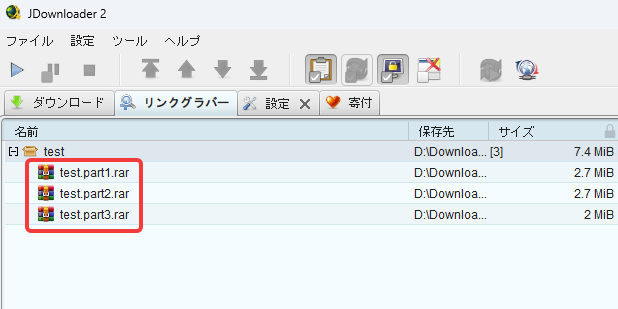
Files are added as you copy the URLs.
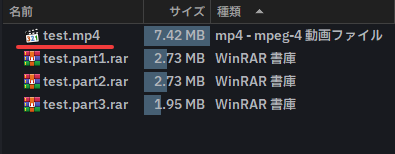
When all the downloads are finished, the archive is extracted automatically and the files are output.
How to hide ads in JDownloader2
JDownloader2 shows ads, but you can hide them in the settings.
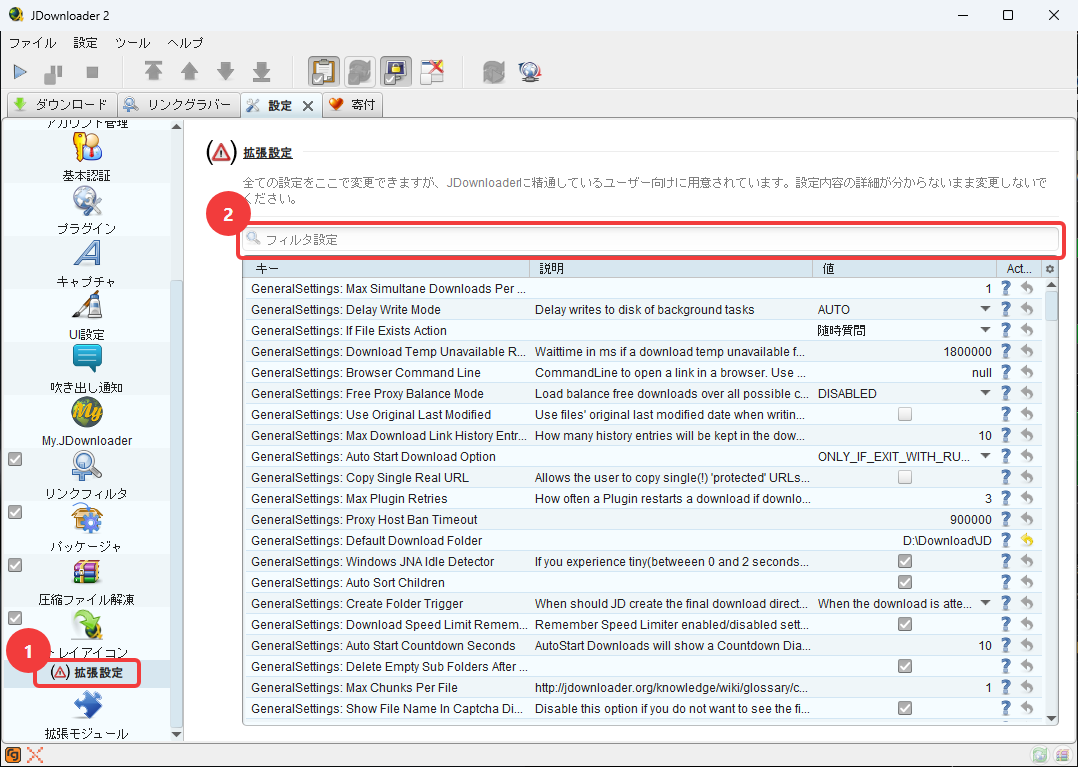
Go to Settings → Advanced Settings and enter a search term in the filter field.
Hide the premium alert
Search for premium alert and untick it.

Hide oboom
Search for oboom and untick it.

Hide Special Deals
Search for Special Deals and untick it.

Hide the banner
Search for Banner and untick it.

Hide the Donate button
Search for Donate and set it to Hidden (user mode).

How to turn off automatic subfolder creation
With JDownloader2’s default settings, a subfolder is created for every download and the files are placed inside it.
That means you have to open a folder each time to see a file. It is a little tedious when you just want the files themselves.
This feature can be turned off in the settings.
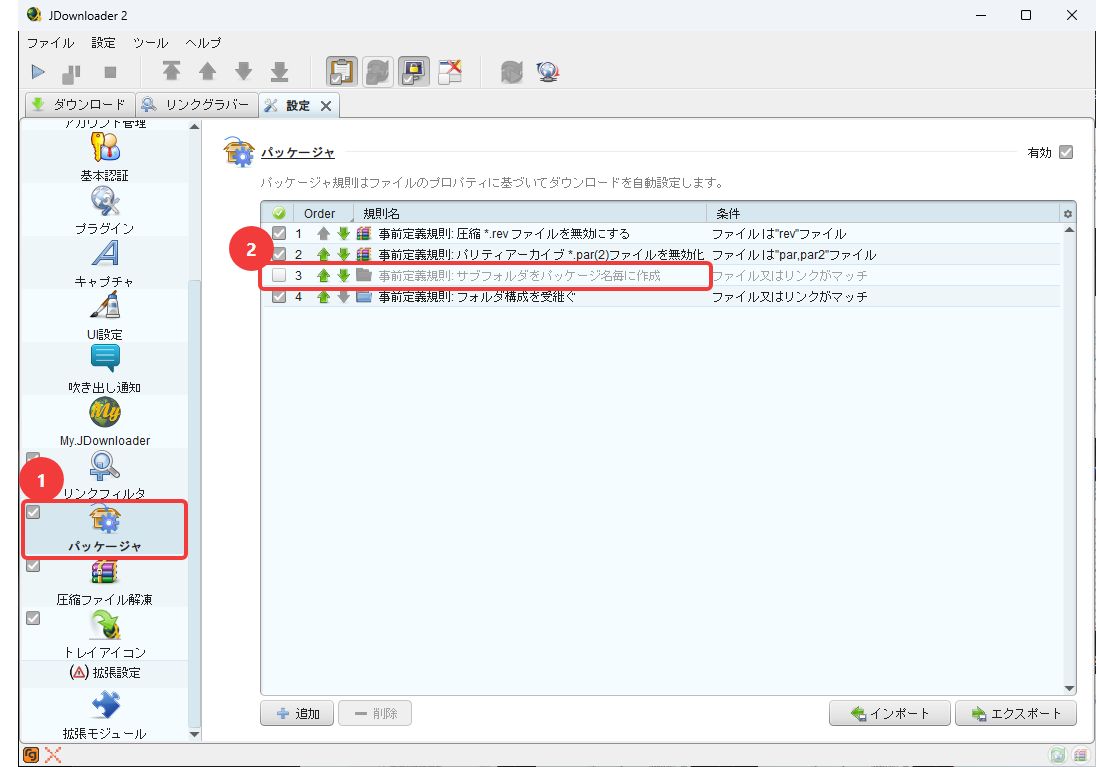
Go to Settings → Packagizer and untick the predefined rule Create subfolder by packagename.
Subfolders will no longer be created.
JDownloader2 frequently asked questions (FAQ)
Is JDownloader2 free to use?
Yes, JDownloader2 is free software. A donate button and the like are shown on screen, but you can use every feature without donating.
Can I use it on a Mac?
Yes, JDownloader2 supports Windows, Mac and Linux. Choose the installer for your OS on the download page of the official site.
Is it OK to download YouTube videos?
Under YouTube’s terms of service, downloading videos is not allowed except where YouTube permits it. Stick to videos with no rights issues, such as ones you uploaded yourself or ones where downloading is permitted.
Also, downloading something you know was uploaded illegally is illegal under copyright law.
Is JDownloader2 safe? Do I need to worry about viruses?
If you use the installer distributed on the official site (jdownloader.org), it is basically safe to use.
What you need to be careful about are files distributed on unofficial sites with similar names and the other software offered during installation. See Precautions for installing safely for details.
What if it is not shown in my language?
JDownloader2 is available in many languages and normally switches automatically to match your computer’s language.
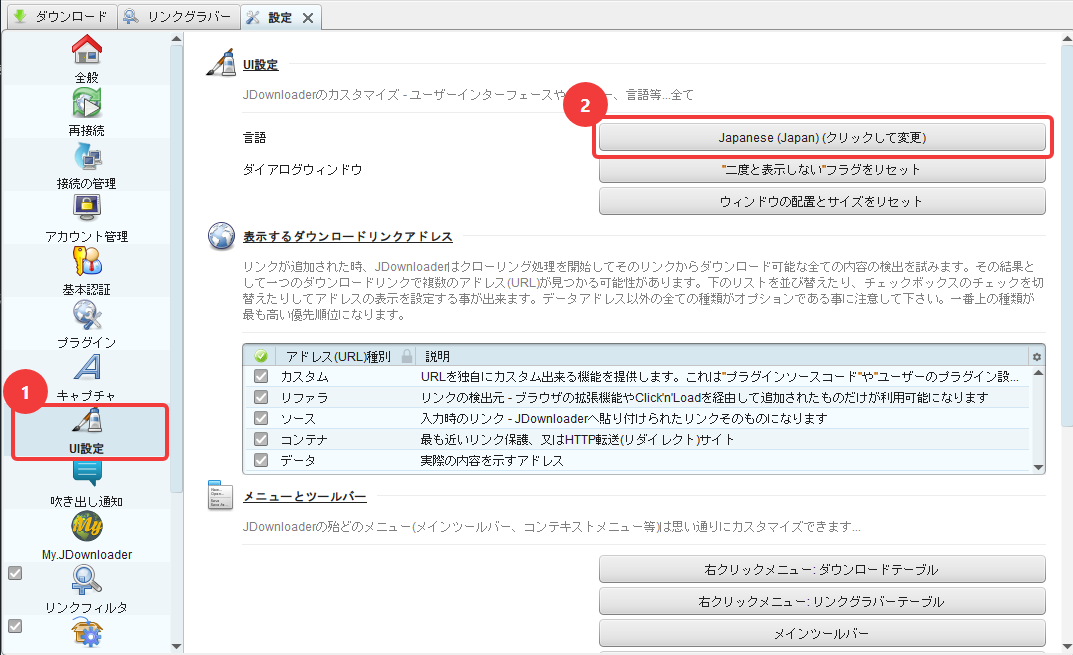
If it is shown in the wrong language, choose your language under Settings → User Interface and restart the software.
What if downloads are slow?
As a free member, the file host limits your speed, so using JDownloader2 does not make it faster. Linking a Premium account removes this limit.
If it is slow even with a Premium account, try a different time of day, reduce the number of simultaneous downloads, or switch location if you use a VPN.
What if a download does not start?
Check whether the link is still sitting in the LinkGrabber. A download does not start while the link is in the LinkGrabber.
If it still does not start, restart JDownloader2 and update it to the latest version. Plugins are updated to keep up with changes on sites, so an update sometimes fixes it.
Summary: make downloading more efficient with JDownloader2
This article explained how to use the free download manager JDownloader2 and its handy settings.
With so many features it may look difficult at first, but the basics are just copying a URL and starting the download. Finally, let’s go over the key points of this article.
- Just copy a URL and it is added to the download list automatically
- Playlists and split files can be downloaded together and extracted automatically
- With the resume function, a download that stops partway can continue from where it left off
- Link a Premium account for an overseas file host and you can download at high speed with no waiting time
- Ads and automatic subfolder creation can be hidden or turned off in the settings
The three most useful features are linking Premium accounts for overseas file hosts, automatic extraction and the resume function. Installing this one program makes downloading far more comfortable.
If you use overseas file hosts such as Rapidgator, combining it with a Premium account is recommended. How to buy Premium is explained in detail in the article below.
Always download the installer from the official site, and respect copyright and each site’s terms of use. If anything is unclear, feel free to ask in the comments. I will answer as best I can.





コメント